From the Services screen, click on the Quotation tab, and click on the Financial button:
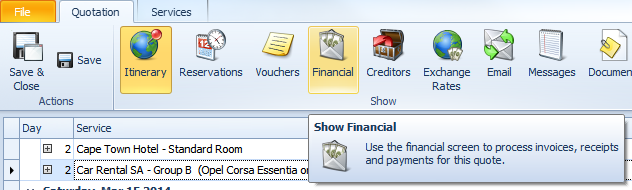
Your quotation has to be in a locked state before you can create a new invoice. You will know if the quote is not locked if the Financial screen is greyed out.
In this case, the locked state is Confirmed. Go to File and click on State, change the state to Confirmed.
Click on the New Document button and select Proforma Invoice or Customer Invoice:
- The Client and Currency fields will default according to the quotation settings
- This Currency defaults to Quotation / Home currency; by clicking on the drop down list, you can select an alternative currency, provided it has been set up as an Accounting Currency in Settings
- The Document Date will default to the current date, travel start or travel end date (the date option can be set up under Account Settings)
- The Document Number will be automatically generated Travelogic once the invoice is saved
- The Description will default to Customer (or Proforma) Invoice; this is a free text field and can therefore be edited if need be
- The Reference will default to the Quotation Number, and can also be edited if need be

Now click on Add Quotation Services at the top of the screen to add the services to your invoice:
- All services that are ticked will be included in your invoice;
- Confirmed services are already ticked and therefore will be automatically included
- Feel free to un-tick services to exclude them from your invoice
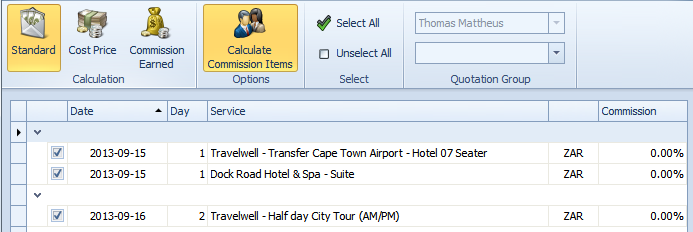
Note the row of buttons at the top of the screen:
- Standard: this is the default setting of the invoice and will add the Sell or Total amount of the services to your invoice
- Cost Price: click this button to add the Cost price of the service instead of the Sell prices
- Commission Earned: use this setting when invoicing a Supplier for commission due to you
- Calculate Commission Items: this setting is applicable to Agent’s Commission
- Use this setting to deduct the your agent’s commission from the sell price of the services allowing you to invoice a Nett amount (rack less commission) to the agent
- Note that this is a default setting, i.e. this button is automatically activated; click this button to de-activate it if you are invoicing your Agent the Rack amount
- Click OK to add these services to your invoice:
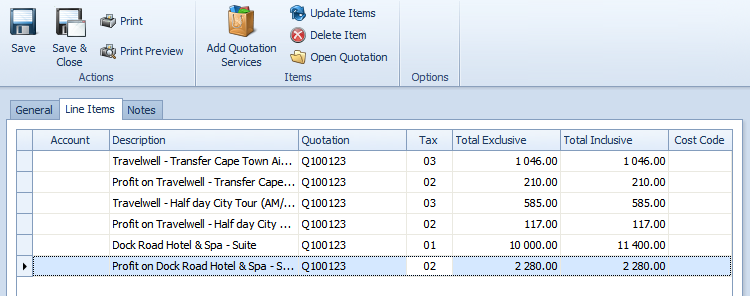
- Save & Close
Follow these steps to generate a Customer Invoice Report (i.e. document) to send to your client:
Click on the orange File menu, select Reports, then Customer Invoice
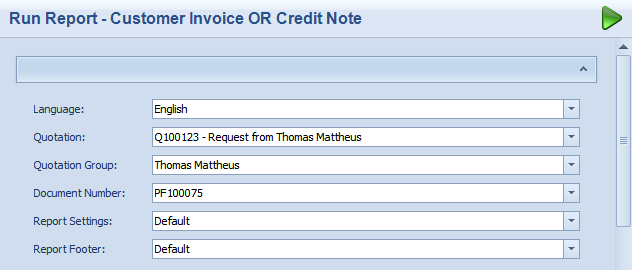
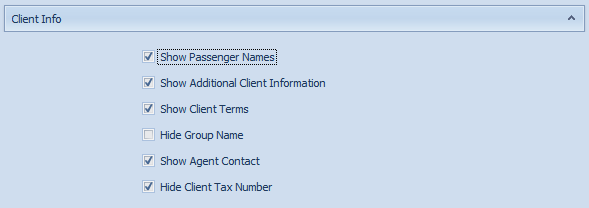
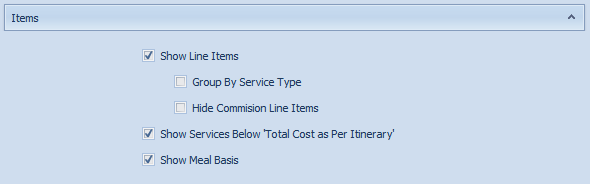
This is a guideline on which options to select when running the Customer Invoice Report:
- Under General:

- Under Client Info:
- Under Items:
- Under Pricing:
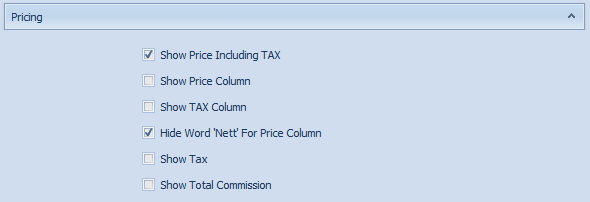
- Tick Show Total Commission if the client is a Retail Agent and you want to show the total commission on the invoice.
When clicking VIEW, the Invoice will be generated leaving the Run Customer Invoice screen open, allowing you to change the options you've selected.
When clicking OPEN, the invoice will be generated but the Run Customer Invoice screen will be closed.
Once the Customer Invoice has been generated, you can export it into PDF, RTF (Word) or Excel format.
In the top left corner, click on Export To:
