On the Rate Sheet, there is a column entitled Code. This is where you can enter the name of a special offer/rate or even a supplier-specific rate code.
For example, when loading a Stay Pay special, enter the name of the special as follows:
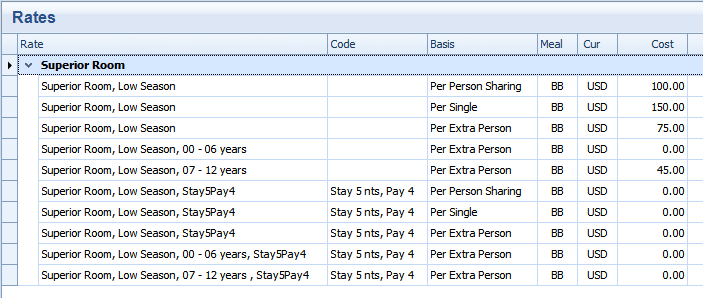
This Rate Code will show up in the Quotation in the following 2 ways:
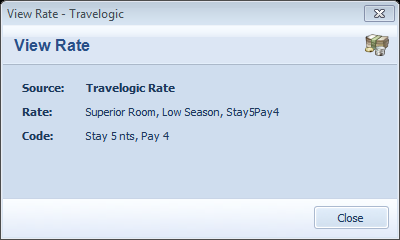
1) On the Quotation screen
When using this service in the Quote, go to the 5th night (in the example above, the special rate is applicable to the 5th night), expand (click on the + sign) till you see the passengers. Double click on one of the passengers and it will show the applicable Rate Rules as well as the Rate Code used:
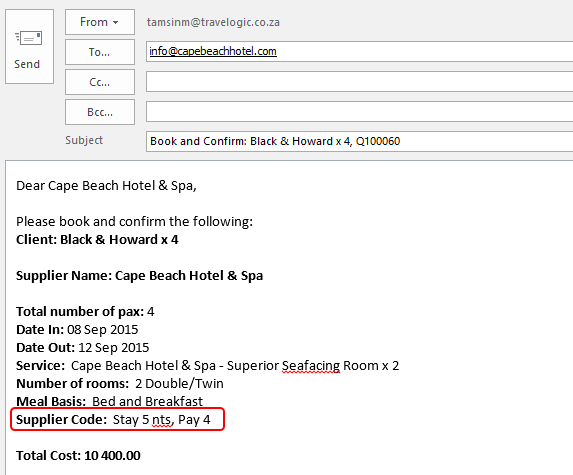
2) On the Reservation Email
Go to the Reservations tab, highlight the accommodation service, click "Send Email Reservation". The reservation email will show the applicable Supplier Rate Code, as follows:
For more information on how to load Specials, click on the following links:
- How to load Stay Pay Specials i.e. Stay 5 nights Pay 4
- How to load Multiple day Stay Pay specials i.e. Stay 7 Pay 5
- How to load Long Stay Specials
**********************************************************************************
A word of caution: please read!
If a supplier has more than 1 type of special offer and they are not combinable, please load these specials as separate services.
E.g. let's say a supplier has long stay rates (10% discount for 4 nights or longer) as well as a Stay Pay Special (Stay 5 nights, Pay for 4). However you are not allowed to use the longstay rates in combination with the Stay/Pay special. In this case, you will create an additional service for the Stay Pay offer:
- Superior Room - enter the normal and long stay rates to this service
- Superior Room (Stay 5, Pay 4) - enter the normal and the special offer rates to this service, as outlined in the example above
Always be very cautious and use your discretion when loading special rates!
**********************************************************************************